How to Transfer a Phone Call: Warm, Cold and to Your Cell
A homeowner calls about water dripping through a ceiling. Your office manager says “hold on, let me get the owner,” presses a button, and the line goes quiet for 40 seconds. Then the caller hears a voicemail greeting, hangs up, and dials the next shop on Google. Knowing how to transfer a phone call properly is the difference between that caller and a booked job.
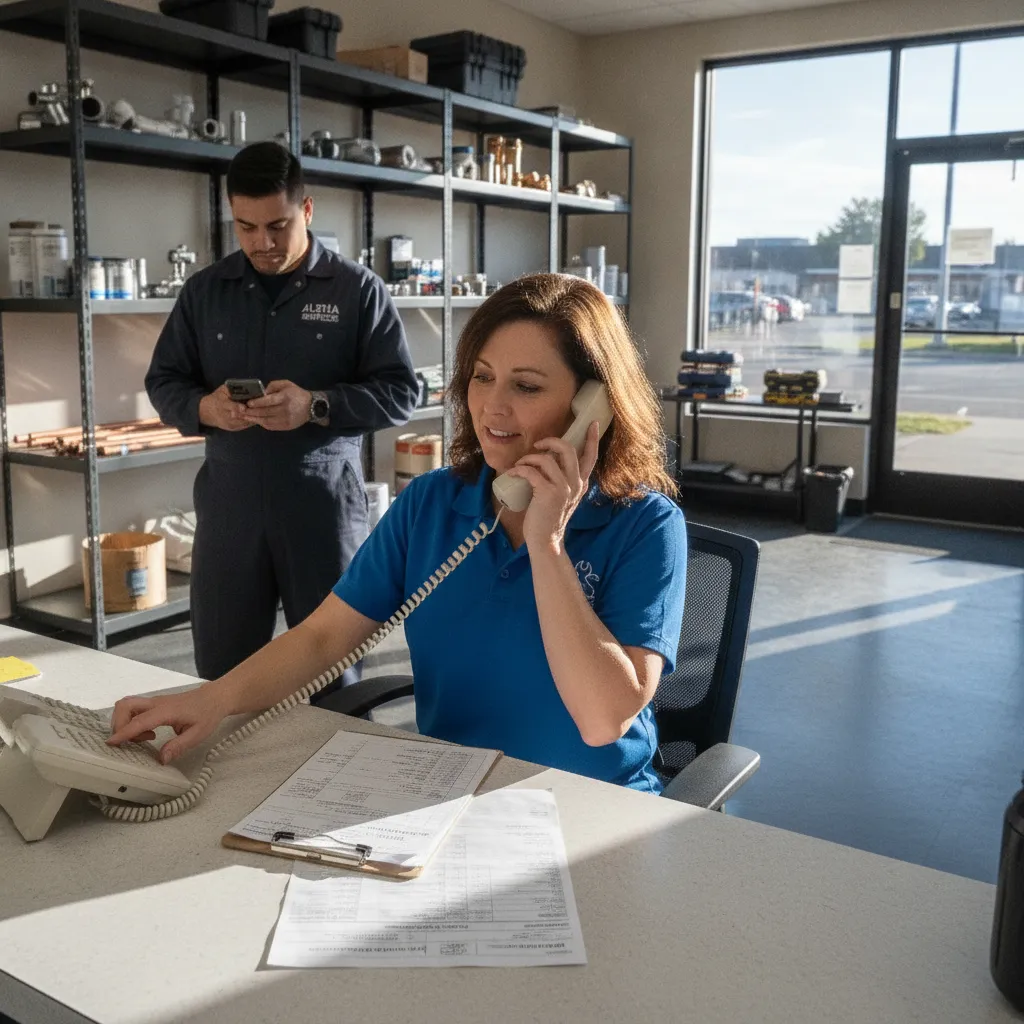
This guide covers the three transfers a service shop actually uses: the warm transfer, the cold transfer, and the hand-off from the shop line to the owner’s cell. It includes the exact wording to say, the button steps for desk phones and mobile apps, and the carrier codes for forwarding a line when nobody is at the counter.
Warm transfer vs cold transfer: which one to use
Every transfer is one of two types. The difference is whether the person receiving the call knows who is on the line before they pick up.
| Warm transfer | Cold transfer | |
|---|---|---|
| What happens | You talk to the receiver first, then connect the caller | You send the call straight through |
| Caller repeats the story? | No | Usually yes |
| Time it takes | 30–90 seconds | 5 seconds |
| Best for | Emergencies, upset customers, quotes, anything with money attached | Simple routing: billing, parts, a known extension |
| Risk | Caller waits on hold while you brief | Receiver picks up blind, or nobody picks up at all |
Use a warm transfer when the call is worth money or the caller is stressed. A burst pipe, a no-heat call in January, an insurance roof claim, a patient in pain. Those callers already explained once. Making them explain again to a second person who sounds surprised is how a hot lead cools off.
Use a cold transfer when the request is routine and the receiver is reliable. “Can I talk to accounts payable?” does not need a briefing. If the receiving line is a person who always answers, or a department line that rolls to a voicemail someone actually checks, a cold transfer is fine.
The mistake most shops make is cold-transferring everything because it is faster for the person at the desk. It is faster for them. It is slower for the customer.
What to say during a warm transfer (copy-paste script)
The wording matters more than the button. Here is a three-part script that works for the front desk, a dispatcher, or anyone covering phones.
1. To the caller, before you put them on hold:
“I’m going to get Mike, our service manager, on the line so you don’t have to repeat yourself. It’ll take about a minute. Is this the best number if we get cut off?”
Getting the callback number before the transfer is the single most useful habit on this page. If the transfer drops, you can call back in ten seconds instead of hoping they call again.
2. To the receiver, while the caller is on hold:
“Mike, I’ve got Sarah Lopez on line one. Water coming through the kitchen ceiling at 412 Elm, started about an hour ago, she’s shut the main off. She wants someone today. Can you take her?”
Name, problem, address or account, urgency, and what they want. Five facts, under 20 seconds.
3. Connecting both parties:
“Sarah, I’ve got Mike here. I’ve told him about the leak in the kitchen ceiling and that you’ve shut the water off. Mike, she’s all yours.”
Then drop off. Do not hang around on a three-way call.
If the receiver doesn’t answer:
“Sarah, Mike is on a job right now. I’ve got your number and the details, and I’m texting him your info now. You’ll hear back within 30 minutes. If it gets worse before then, call this number and say it’s an emergency.”
Only promise a callback window your team can actually hit. For more wording like this, see our call script templates and the guide on how to answer the phone professionally.
How to transfer a phone call on a desk phone, cell or app
The steps vary by system, but nearly every business phone follows one of three patterns. Check your provider’s manual for the exact button names.
Desk phones (VoIP or PBX)
Most VoIP desk phones from Yealink, Poly, Cisco and similar brands label the key Transfer or Xfer.
Warm (attended) transfer:
- Press Transfer. The caller goes on hold automatically.
- Dial the extension or the full 10-digit number.
- Wait for the receiver to answer and brief them.
- Press Transfer again to connect, then hang up.
Cold (blind) transfer:
- Press Transfer.
- Dial the extension or number.
- Press Transfer again immediately, or hang up, depending on the model.
If your shop uses an auto attendant phone system, callers can route themselves with “press 1 for service,” but someone still has to handle the transfers that come out of that menu.
Cell phones (iPhone and Android)
Standard cell plans do not have a true transfer button. What you can do is a merge:
- During the call, tap Add call and dial the person you want to hand off to.
- Brief them while the original caller is on hold.
- Tap Merge to make a three-way call.
- Introduce both people, then hang up. On most carriers the other two stay connected.
Merge behaviour depends on the carrier and plan, so test it once with a coworker before you need it with a customer.
Business phone apps
If your business line runs through a VoIP app on your phone (RingCentral, Grasshopper, Google Voice for business, Dialpad and similar), the app usually has its own Transfer button that works like a desk phone: warm or blind. Many also offer a “park” feature, where you put the call in a numbered slot and anyone on the team can pick it up from their own phone.
How to transfer a call to your cell phone from the shop line
This is the transfer most owners actually need: the call comes in on the shop number, and it has to reach a phone in a truck or on a roof. There are three ways to do it.
1. Forward the whole line. Every call to the shop number rings your cell instead. Good for lunch breaks, slow afternoons and weekends. On a Verizon mobile line, you dial *72 plus the 10-digit number to turn forwarding on and *73 to turn it off, according to Verizon’s call forwarding support page. Many landline carriers use the same *72/*73 pattern. GSM carriers often use different codes, so check your carrier before relying on it.
2. Conditional forwarding. The call rings the shop first, and only goes to your cell if nobody answers after a set number of rings, or if the line is busy. This is the most useful setting for a small shop, because the counter still gets first shot and you only get pulled off the job when the desk is empty. Most VoIP systems call this “ring group,” “find me follow me” or “simultaneous ring.”
3. Transfer one call at a time. The front desk answers, decides the call needs you, and warm-transfers to your cell using the desk phone steps above. Best for quality, but it only works when someone is at the desk.
Each of these has the same weak point: forwarding a call to your cell does not make you available. If you are under a sink or on a ladder, the call still goes to your personal voicemail. Our guide to call forwarding to an answering service covers the other option, which is forwarding to someone whose whole job is picking up.
Why transfers fail, and how to fix each one
Most dropped or wasted transfers trace back to five problems.
- No callback number taken first. Fix: always confirm the number before you press anything.
- Cold transfer to a person who doesn’t answer. The caller lands in a stranger’s voicemail. Fix: warm-transfer anything that matters, and set a fallback if the receiver doesn’t pick up in four rings.
- Hold with no explanation. Silence feels like a dropped call. Fix: tell the caller how long it will take, and check back if it runs past a minute.
- Receiver picks up cold. “Hello?” with no context makes your shop sound disorganised. Fix: the 20-second briefing in the script above.
- Transferring to voicemail at all. Plenty of callers won’t leave one, especially after hours. Fix: if there is truly no one to take it, take a message yourself with name, number, problem and urgency, and text it to the tech.
A dropped transfer does not show up on any report. It just shows up as a call your shop “never got.” The HVAC and plumbing pages walk through what those calls look like in peak season.
When there is nobody to transfer the call to
Transfers assume two things: someone answers first, and someone is available to receive. On a Tuesday afternoon with one office manager and four techs in the field, the first assumption breaks every time she steps away from the desk. After 5 p.m., both break.
That is the gap an AI receptionist fills. It answers every call on the first ring, gets the name, number, address and problem, books the job if it is routine, and passes the caller to you or your team when a person is genuinely needed, with the details already captured so nobody repeats themselves. The AI receptionist feature page covers what it handles on a live call, and our AI receptionist vs answering service comparison lays out how it differs from a human call center doing the same job.
Frequently asked
Q: How do I transfer a call on my iPhone? A: iPhones have no built-in transfer button on a standard plan. Tap Add Call, dial the person, tell them who is on hold, tap Merge, then hang up. On most carriers the other two people stay connected.
Q: What is the difference between a warm transfer and a cold transfer? A: In a warm transfer you speak to the receiver first and brief them before connecting the caller. In a cold or blind transfer you send the call straight through without talking to the receiver.
Q: How do I forward my business line to my cell phone? A: Many carriers let you dial *72 followed by the 10-digit cell number to turn forwarding on and *73 to turn it off. VoIP systems usually set this in the admin portal under call forwarding or ring groups. Codes vary by carrier, so confirm with yours.
Q: Can I transfer a call without the caller knowing? A: A blind transfer moves the call without a briefing, but the caller will hear hold music or ringing. Good practice is to tell them who you are connecting them to and why, so the hand-off doesn’t feel like a brush-off.
Stop losing calls between the desk and the truck
Good transfers keep a caller warm. But a transfer only works when someone answers first and someone is free to take it, and in a service shop that is often nobody. InstaNexus AI answers every call, captures the details, and hands off the ones that need you.