Google Review Link: How to Find It, Shorten It, and Share It
“Just search us on Google and leave a review” costs you most of the reviews you ask for. That one sentence turns a 10-second favor into a search, a scroll past three competitors, a tap on the right listing, and a hunt for the review button. A direct Google review link skips all of it: one tap and the customer is looking at five empty stars with your business name on top.
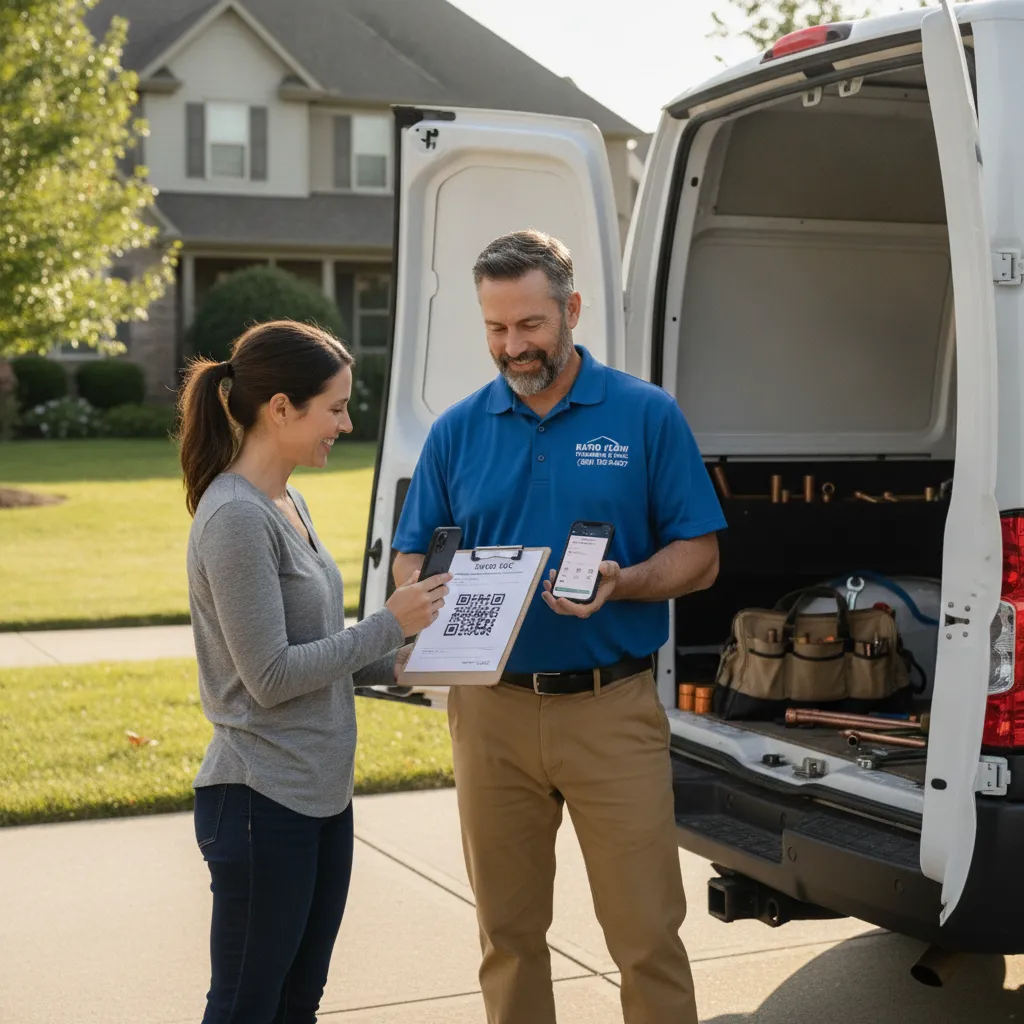
This post is the utility version. Where to find your link, how to make it short enough to say out loud, how to turn it into a QR code, and the six places it should live. If you want the wording of the ask itself, that’s in how to ask for a Google review.
Where to find your Google review link
Google gives every verified Business Profile a direct review link. You don’t need a developer, a plugin, or a paid tool to get it. Google’s own help page on getting reviews tells owners to share this link or its QR code with customers.
Google moves buttons around every few months, so treat the paths below as “look for this” rather than pixel-exact.
On a computer
- Sign in to the Google account that manages your Business Profile.
- Search Google for your exact business name. Your profile panel appears with owner controls on top.
- Click Ask for reviews (sometimes shown as Get more reviews or under the Read reviews menu).
- A box opens with your review link. Click the copy icon.
On your phone
- Open the Google Maps app, tap your profile picture, and choose Your Business Profiles.
- Open your business, go to the Customers or Reviews tab.
- Tap Ask for reviews or Share review form, then copy the link.
The link usually looks like https://g.page/r/ followed by a code and /review. Paste it into a browser in a private window to confirm it opens the review box for your business, not a search results page.
If the button isn’t there
The most common reason is that the profile isn’t verified yet, or you’re signed into the wrong Google account. Fix verification first. Unverified profiles can’t reliably collect or display reviews, and it’s the same fix we flag first in our Google Business Profile optimization guide.
The backup method: build the link from your Place ID
If you manage several locations, or the share button is missing from your account view, you can build the same Google review link by hand.
- Look up your business in Google’s Place ID Finder. It returns a long code starting with letters like
ChIJ. - Add that code to the end of this address:
https://search.google.com/local/writereview?placeid= - Test it in a private window. It should open the review form directly.
This is the version most review tools generate under the hood. It works the same way, it’s just uglier. You’ll shorten it in the next step anyway.
How to shorten your Google review link
The raw link is fine inside a text message. It’s useless on a truck door, a business card, or a voicemail greeting. You want something a customer can read, type, or hear.
| Option | Example | Best for | Watch out for |
|---|---|---|---|
| Google’s share link as-is | g.page/r/Cabc123/review | Texts and emails | Not readable out loud |
| Branded redirect on your site | yourcompany.com/review | Trucks, cards, invoices, phone | Needs a one-time redirect set up |
| Third-party shortener | bit.ly/acme-review | Quick fix if you have no site access | Link depends on a service you don’t control |
Our pick for most shops: the branded redirect. Ask whoever runs your website to set up a permanent (301) redirect from yourcompany.com/review to your Google review link. It takes a few minutes in most website builders, it looks trustworthy because it’s your own domain, and if Google ever changes your link format you update one redirect instead of reprinting 500 invoices.
A note on free shorteners: Google shut down its own goo.gl shortener, and plenty of shops found old printed links stopped working. If you use a third-party shortener, use a free account you own, not someone’s agency account, so the link doesn’t die when the relationship does.
Google review QR code: when paper beats a text
Some customers don’t text. Some jobs end with a paper invoice on the kitchen table. For those moments, a Google review QR code does the work the link can’t.
You have two ways to get one:
- From Google. The same Ask for reviews panel often includes a downloadable QR code or poster. Use it if it’s there.
- From your short link. Any free QR generator will turn
yourcompany.com/reviewinto a code. Encode the branded redirect, not the raw Google URL, so you can repoint it later without reprinting.
Print rules that save you a reprint:
- At least 1 inch (2.5 cm) square on invoices and cards. Bigger on counter signs.
- Dark code on a white background. Skip the logo-in-the-middle styling unless you’ve tested it on an older phone.
- Put a line of text next to it: “Scan to review us on Google. Takes 30 seconds.”
- Scan every printed proof with two different phones before approving the run.
Six places your Google review link should live
A link nobody sees does nothing. The BrightLocal Local Consumer Review Survey keeps finding that most people who are asked to leave a review go on to leave one. The link is how you make asking frictionless at every point of contact.
- The post-job text. The single highest-converting spot. Send it the same day, from the tech by name. Copy-paste wording by trade is in our review request templates.
- The invoice. Printed QR code on paper invoices, a clickable link in emailed ones. The customer is already looking at your name.
- The email signature. One line under your phone number: “Happy with the work? Review us on Google.” Every estimate and follow-up carries it.
- The leave-behind card. HVAC techs leave maintenance stickers; roofers leave warranty folders. Add the QR code to whatever already stays in the house. Trade-specific timing is covered in how to get more HVAC reviews and how to get more roofing reviews.
- Your website’s thank-you page. After someone books online or pays a bill, the confirmation page is a natural place for “Leave us a Google review.”
- The counter or waiting room. Auto shops and dental offices have customers standing around. A small printed sign at checkout with the QR code turns wait time into reviews. Practices can go further and make the review ask a checkout step.
One place it should not live: a “rate us first” survey that only forwards happy customers to Google. That’s review gating, and Google’s policies prohibit selectively asking for positive reviews. Send the same link to everyone.
Why the link alone doesn’t fix review volume
Most shops that go looking for their Google review link already know reviews matter. The link solves the friction. It doesn’t solve the two bigger leaks.
Leak one: nobody sends it. The tech is on to the next call, the office is slammed, and the text never goes out. A link that depends on someone remembering will get sent on the slow days and skipped on the busy ones, which are exactly the days with the most finished jobs. That’s why shops end up automating the ask; we cover how that works and what consent rules apply in Google review automation.
Leak two: the job never happened. Every Google review of business starts with a customer who got through when they called. If the call went to voicemail at 7:40 on a Tuesday night, that homeowner booked the next shop on the list, and their review goes there too. Whether that gap is filled by a live answering service or an AI receptionist is its own decision; we compare both in AI receptionist vs answering service.
For trade-specific setups, see how it plays out for HVAC companies, plumbers, and roofers.
Frequently asked
Q: How do I get a link for people to review my business on Google? A: Sign in to the Google account that manages your Business Profile, search your business name, and click Ask for reviews. Copy the link from the box that opens. The Google Maps app has the same option under Your Business Profiles.
Q: Does my Google review link ever change? A: The share link is generally stable, but Google has changed link formats before. Sending customers to a redirect on your own domain protects you: if the underlying link changes, you update one redirect instead of every invoice and card.
Q: Can I make a QR code for Google reviews? A: Yes. Use the QR code in Google’s Ask for reviews panel if it’s offered, or generate one from your short link with any free QR tool. Test the printed code on two phones before you order a batch.
Q: Why does my Google review link open a search page instead of the review box? A: Usually the link was copied from the address bar instead of the Ask for reviews panel, or it was built with the wrong Place ID. Copy it again from the panel and test it in a private browser window.
Q: Is it allowed to send my Google review link to every customer? A: Yes. Google encourages businesses to share their review link. What’s not allowed is offering incentives for reviews or sending the link only to customers you expect to be happy.
More reviews start with more answered calls
Your Google review link only works on customers you actually served. InstaNexus answers every call 24/7, captures the caller’s name, number, and reason for calling, and sends you a summary right after, so more calls turn into jobs, and more jobs turn into reviews. See how it would sound on your line.